Your playlist sounds great. Your second screen is showing an empty desktop.
The best music visualizers for Mac turn that screen into something worth watching: moving paintings, pulsing waveforms, psychedelic patterns, or visuals you can record alongside your own music. The right choice depends on where your audio plays and whether you want to watch, customize, or publish the result.
Our quick answer: start with CadenceViz for varied visual worlds, Vibresia for free customization, and Apple Music Visualizer for the simplest built-in option. Choose Phosphor for system-audio visuals and recording, Sphere V3 for production sessions, or projectM for MilkDrop-style exploration.
VegaReview compares official features, compatibility, and pricing checked November 13, 2026. These are researched recommendations, not results from a hands-on performance benchmark. Prices are USD examples and can vary by region or promotion.
Best music visualizers for Mac at a glance
| Visualizer | Best for | Price | Main consideration |
|---|---|---|---|
| CadenceViz | Varied scenes and musical paintings | Free download; paid volumes and bundle | macOS 26+, M1+; some scenes need M3+ |
| Vibresia | Free, customizable visual worlds | Free; optional donations | Apple silicon and macOS 14.2+ |
| Apple Music Visualizer | Built-in listening | Free with Music | Follows Music app playback |
| Phosphor | System-audio visuals and recording | $6.99; optional $9.99 Link add-on | Apple silicon and macOS 14.4+ |
| Sphere V3 | DAW-based visuals and recording | $39 listed; trial available | Requires a compatible plugin host |
| projectM | MilkDrop-style presets | Free on Steam | Mac audio routing may need setup |
1. CadenceViz
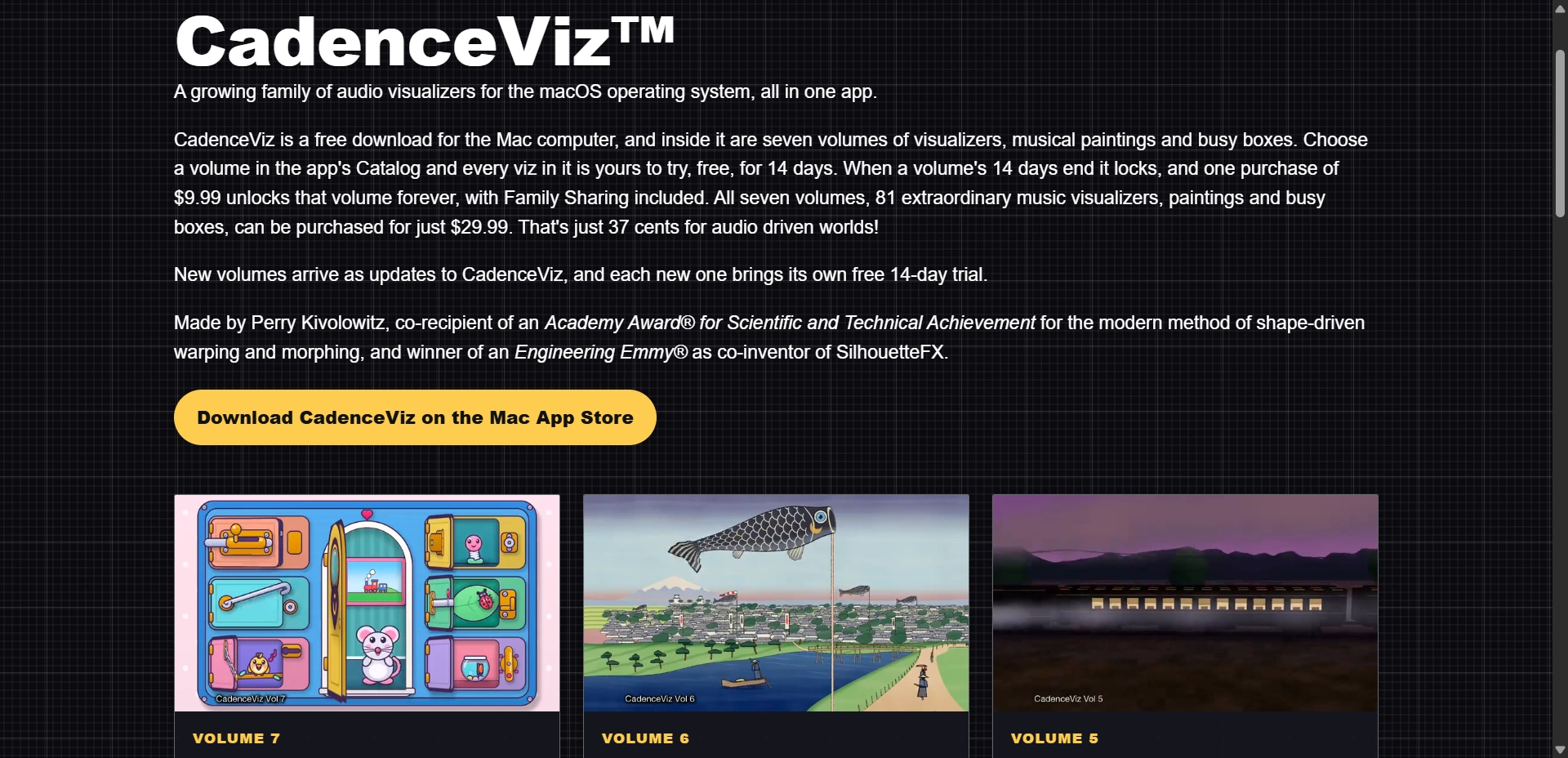
Best for: Listeners who want recognizable worlds alongside abstract visual effects.
CadenceViz offers seven volumes containing 81 visualizers, musical paintings, and busy boxes. Its range is the main attraction: particles, peaceful landscapes, journeys, and animated paintings give you alternatives to another glowing spectrum.
We'd start here if you want a second display to feel like part of the listening room. Choosing a scene that suits an album can be more enjoyable than constantly switching between effects.
Key features:
- Visuals react to whatever audio your Mac plays.
- Themed collections include Journeys, Scenes, Particles, and Musical Paintings.
- Each volume has its own 14-day trial, with Family Sharing on purchases.
Use cases:
- Put a gentle musical painting on a second screen while listening.
- Explore cinematic scenes or particle effects during an album session.
Pros:
- Broad visual variety beyond conventional bars and tunnels.
- Individual-volume purchases let you choose the styles you enjoy.
Cons:
- A free download doesn't mean permanently free access to every volume.
- Its App Store listing requires macOS 26 and M1 or later; Aquarium specifically needs M3 or later.
Pricing: The website advertises $9.99 per volume and $29.99 for seven. The App Store lists Busy Boxes at $3.99 and labels its $29.99 bundle "All Six Volumes." Confirm the included volumes in-app before buying.
Our judgment: Our first pick for variety and atmosphere. Check scene-specific hardware requirements before assuming every effect will run on your Mac.
2. Vibresia
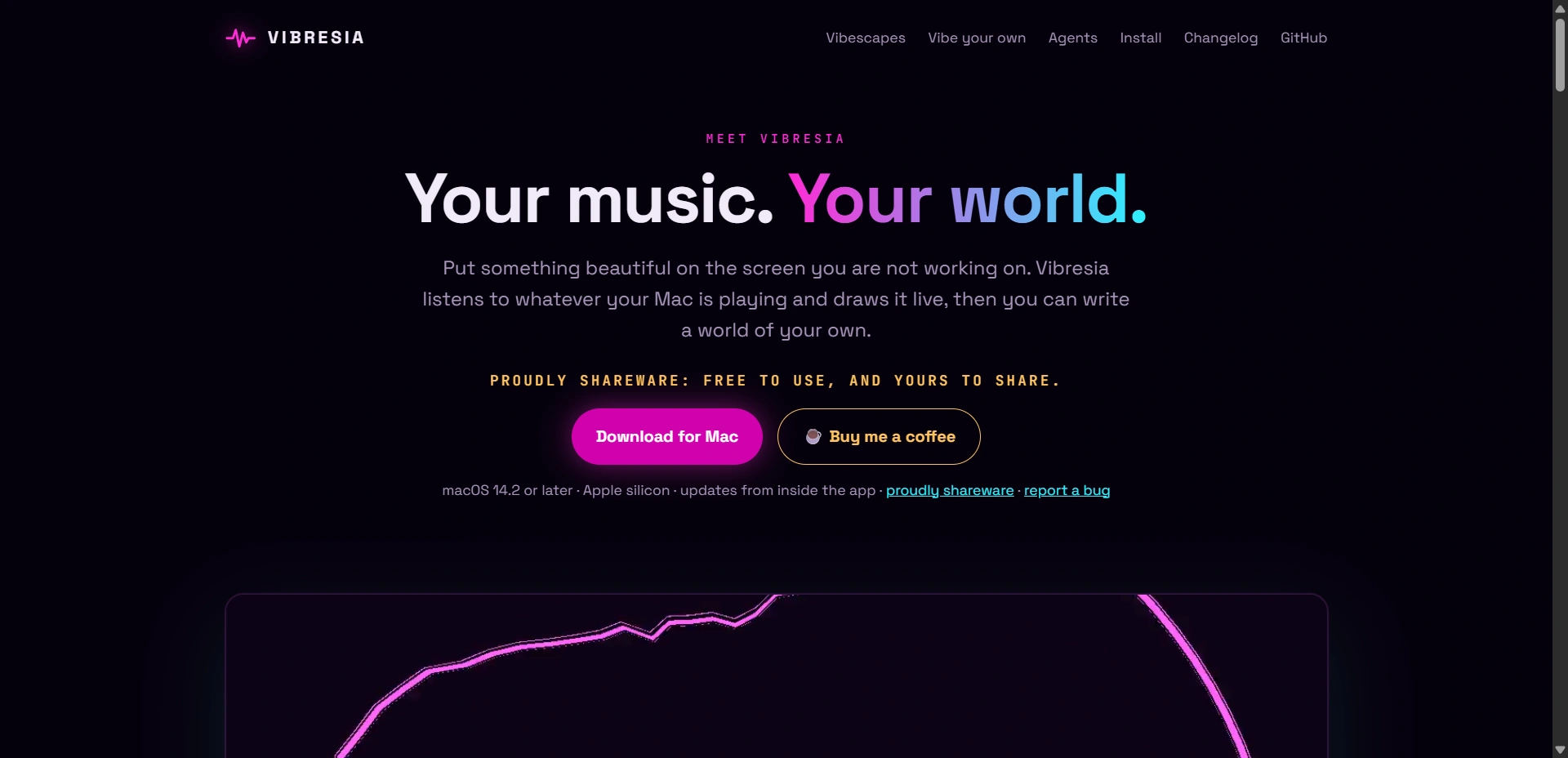
Best for: Apple silicon users who want free visuals they can customize and share.
Vibresia listens to system audio and draws live visual worlds called vibescapes. You can use its included scenes or create your own with GLSL shaders or help from an AI assistant.
The developer describes it as free shareware, with MIT-licensed source code. Its Mac requirements are specific: Apple silicon and macOS 14.2 or later, with no Intel version.
Key features:
- System-audio capture, with optional microphone input.
- Auto Scan changes scenes on musical beats.
- Shareable text-based vibescapes and tools for creating custom scenes.
Use cases:
- Visualize Spotify or browser audio on a spare screen.
- Build a personalized scene that changes with bass, treble, or tempo.
Pros:
- Every feature is free, without ads or an account.
- Custom scenes provide room to experiment beyond the included library.
Cons:
- Doesn't support Intel Macs or MilkDrop presets.
- No MIDI, OSC, NDI, or Syphon output for a live-show workflow.
Pricing: Free, with optional donations. Download it from the developer rather than looking for a Mac App Store edition.
Our judgment: A strong free option for everyday listening and creative tinkering. Choose a dedicated performance tool if you need stage-control integrations.
3. Apple Music Visualizer (free)
Best for: Mac users who want a light show without installing another app.
Apple's built-in visualizer is easy to overlook. It lives inside Music and responds to playback there, making it a convenient starting point for your existing library.
According to Apple's instructions, start a song, then choose Window > Visualizer. Press ? while it runs to see available commands, or Esc to leave. Menu wording can differ on older macOS versions.
Key features:
- Built into the Music app.
- Visualizer settings and keyboard controls.
Use cases:
- Add visuals to an album playing from your library.
- Try music visualization before buying specialist software.
Pros:
- No additional download or visualizer charge.
- Straightforward access from the app you're already using.
Cons:
- Doesn't provide system-wide visualization for Spotify or browser playback.
- Less suited to custom scenes or a production workflow.
Pricing: Free with Music. Subscription music still requires the relevant subscription.
Our judgment: The easiest place to begin if Music is your main player.
4. Phosphor
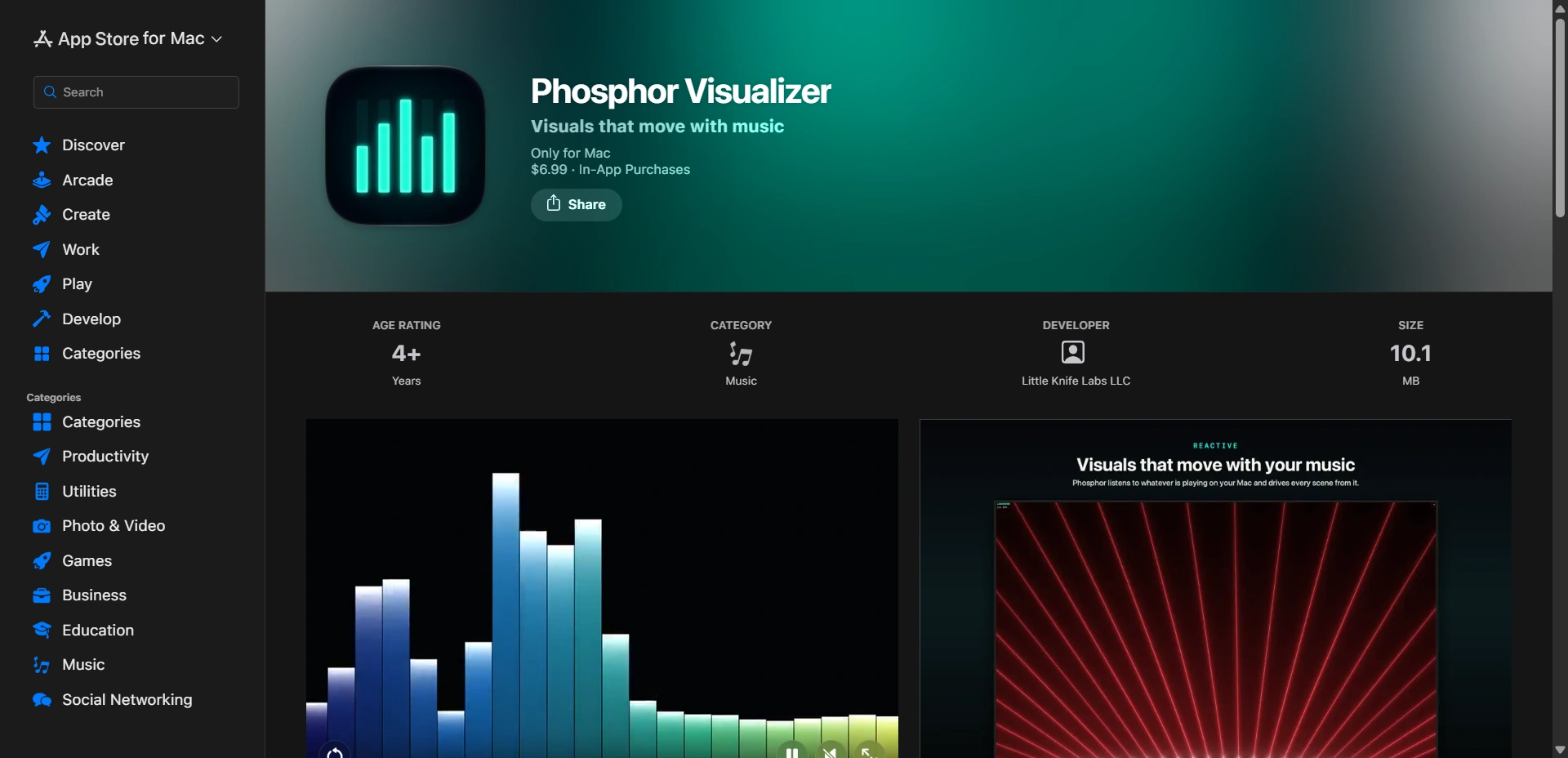
Best for: Modern Mac users wanting system-audio visuals with recording built in.
Phosphor's App Store listing describes scenes driven by system audio, including waveforms, spectrum analyzers, tunnels, and particle fields. It requires Apple silicon and macOS 14.4 or later.
Its practical advantage is flexibility: keep a small visualizer nearby, go fullscreen, or use it as animated wallpaper. The developer's website also documents recording with system audio, which gives creators a direct route from listening to a usable clip.
Key features:
- Floating, fullscreen, and wallpaper modes.
- Layered scenes, effects, presets, and automatic scene selection.
- H.264 MP4 and ProRes MOV recording options.
Use cases:
- Visualize Spotify while keeping your desktop available.
- Record your own track's visuals for an edited release clip.
Pros:
- Works across music apps rather than one player's library.
- Combines viewing, customization, and recording in one app.
Cons:
- Older Macs outside its hardware and OS requirements are excluded.
- Apple TV linking requires an additional purchase.
Pricing: $6.99 on the US App Store. The optional Phosphor Link add-on is $9.99.
Our judgment: A practical all-rounder for listening and recording. For trimming clips or adding titles afterward, see our VEED review.
5. Sphere V3
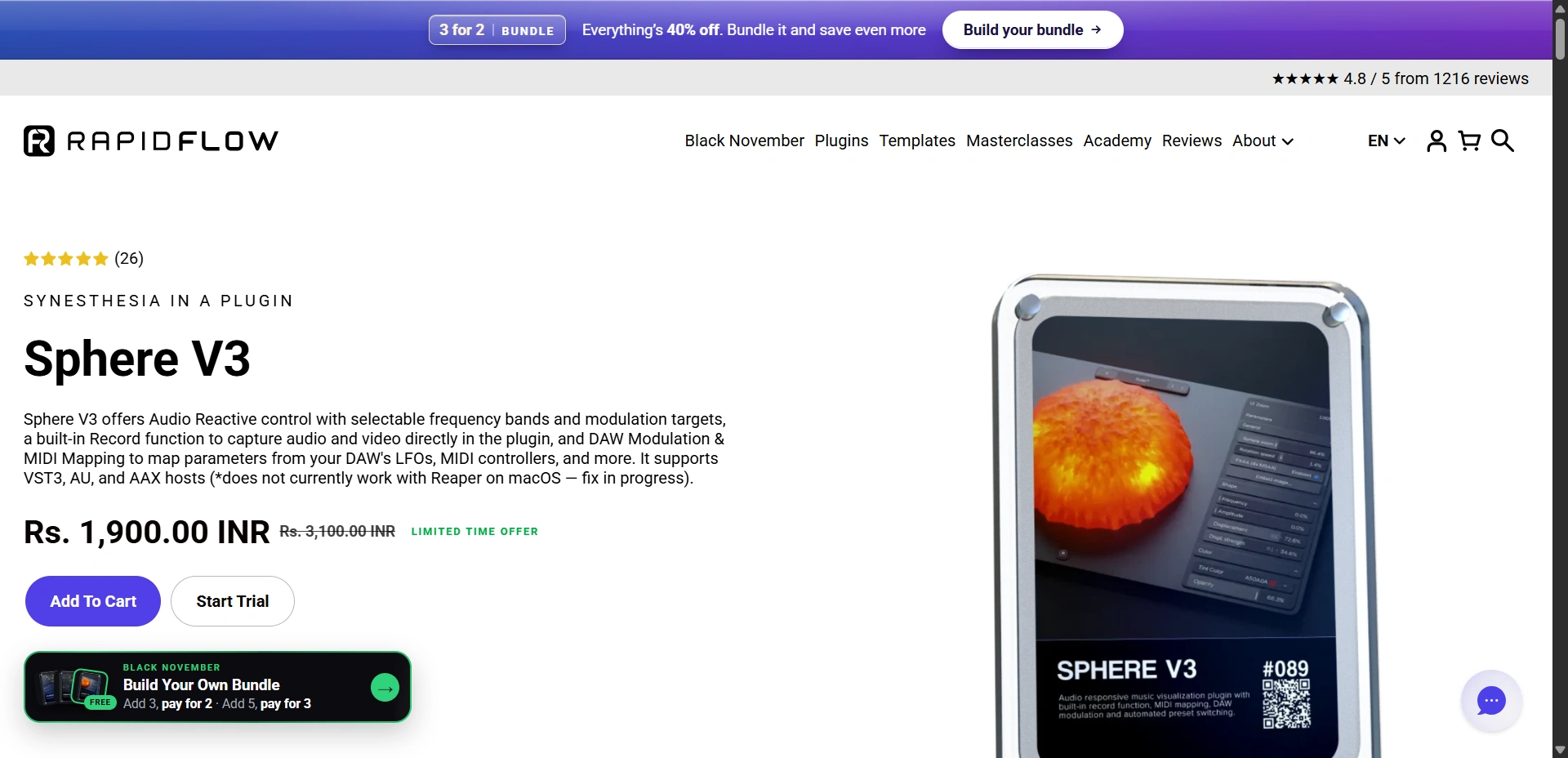
Best for: Music producers creating visuals inside their DAW.
Sphere V3 is a plugin rather than a general-purpose desktop companion. It supports AU, VST3, and AAX hosts, with Mac support listed for Intel and Apple silicon on macOS 10.13.6 or later.
Key features:
- 25 factory presets and customizable colors and movement.
- Frequency-selective modulation and MIDI mapping.
- Built-in audio/video recording with vertical and landscape formats.
Use cases:
- Make an original track drive visuals during production.
- Record a vertical performance clip using your DAW session.
Pros:
- Visual controls fit a music-production workflow.
- Recording reduces reliance on a separate screen-capture tool.
Cons:
- Requires a compatible host rather than simply opening alongside Spotify.
- Rapid Flow currently flags Reaper on macOS as unsupported.
Pricing: $39 listed, with a trial available. Confirm current promotional terms at checkout.
Our judgment: The most relevant option here for DAW-based work. Test it inside your actual host before purchasing.
6. projectM
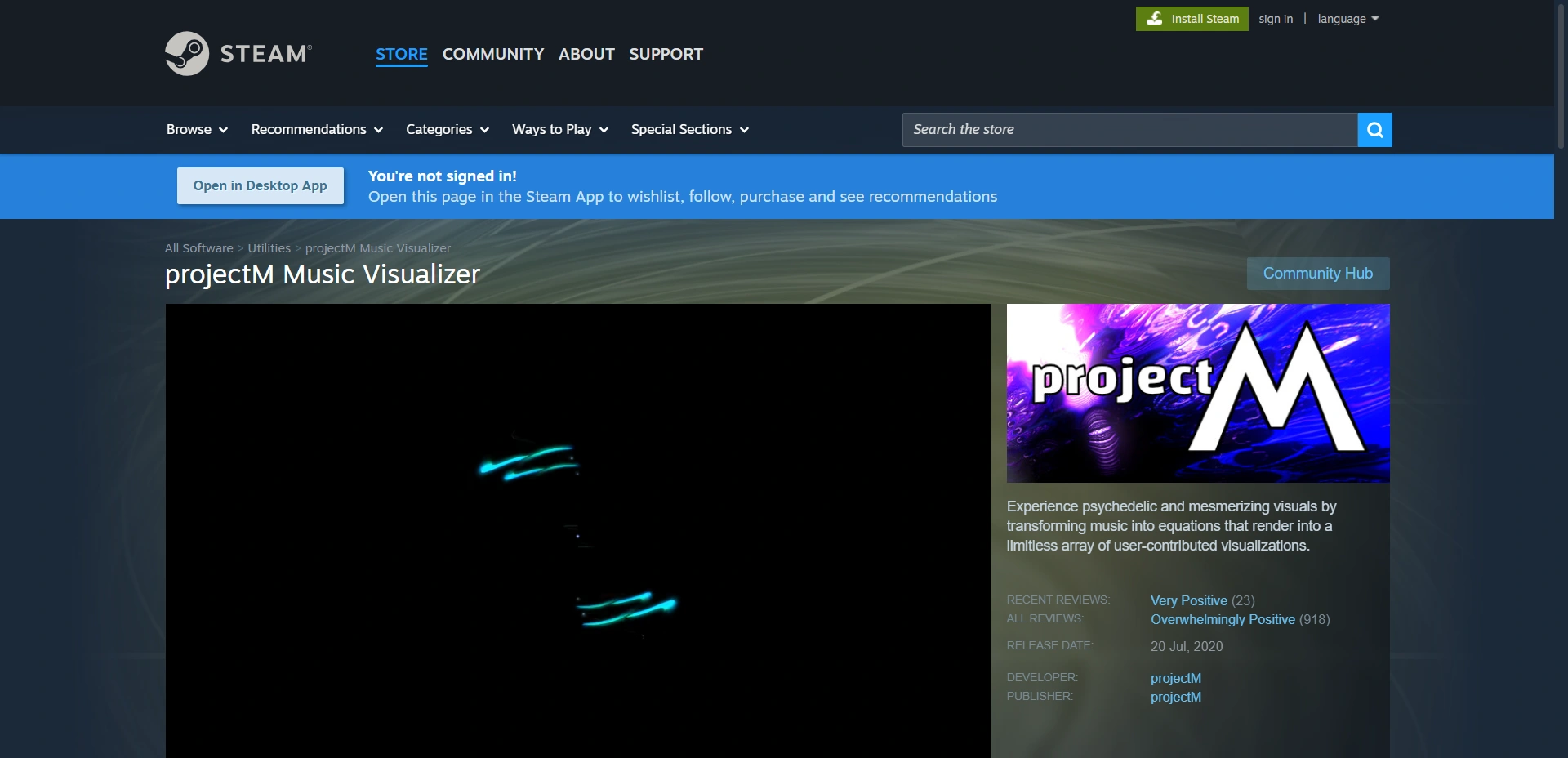
Best for: Listeners who enjoy psychedelic visuals and exploring community presets.
projectM brings the MilkDrop tradition to a cross-platform visualizer. Its open-source project supports MilkDrop-style presets, while different applications package the underlying engine differently.
Key features:
- Over 1,000 working presets advertised in the Steam edition.
- Fullscreen and multi-monitor display.
- Application-audio and microphone input options.
Use cases:
- Explore community-created visuals during long listening sessions.
- Fill multiple displays with an evolving psychedelic presentation.
Pros:
- Large preset ecosystem and open-source foundations.
- Steam lists support for Intel and Apple silicon Macs.
Cons:
- The Steam page warns that capturing application audio takes extra work on Mac.
- Features and preset packs differ between frontends and releases.
Pricing: Currently free on Steam. Its Mac requirements list Catalina 10.15.5 or later and an OpenGL-compatible GPU.
Our judgment: A worthwhile free choice if you enjoy experimenting and can handle audio routing. Start with the microphone input if system audio isn't reaching it.
How should you choose a Mac music visualizer?
First, check your chip and macOS version. Next, decide whether the audio comes from Music, another app, a microphone, or a DAW. That narrows this shortlist faster than comparing screenshots.
Try a quiet track and a busy track, then test fullscreen playback on your intended display. For recording, make a short export and check synchronization before committing to a full song.
If you also need generated footage around your visualizer clips, our AI video generator comparison covers that separate part of the workflow. Start with one app, test your actual audio source, and keep the visuals that make you want to listen longer.